Email Api
Every Email, Encrypted and Accountable
Create Email Api
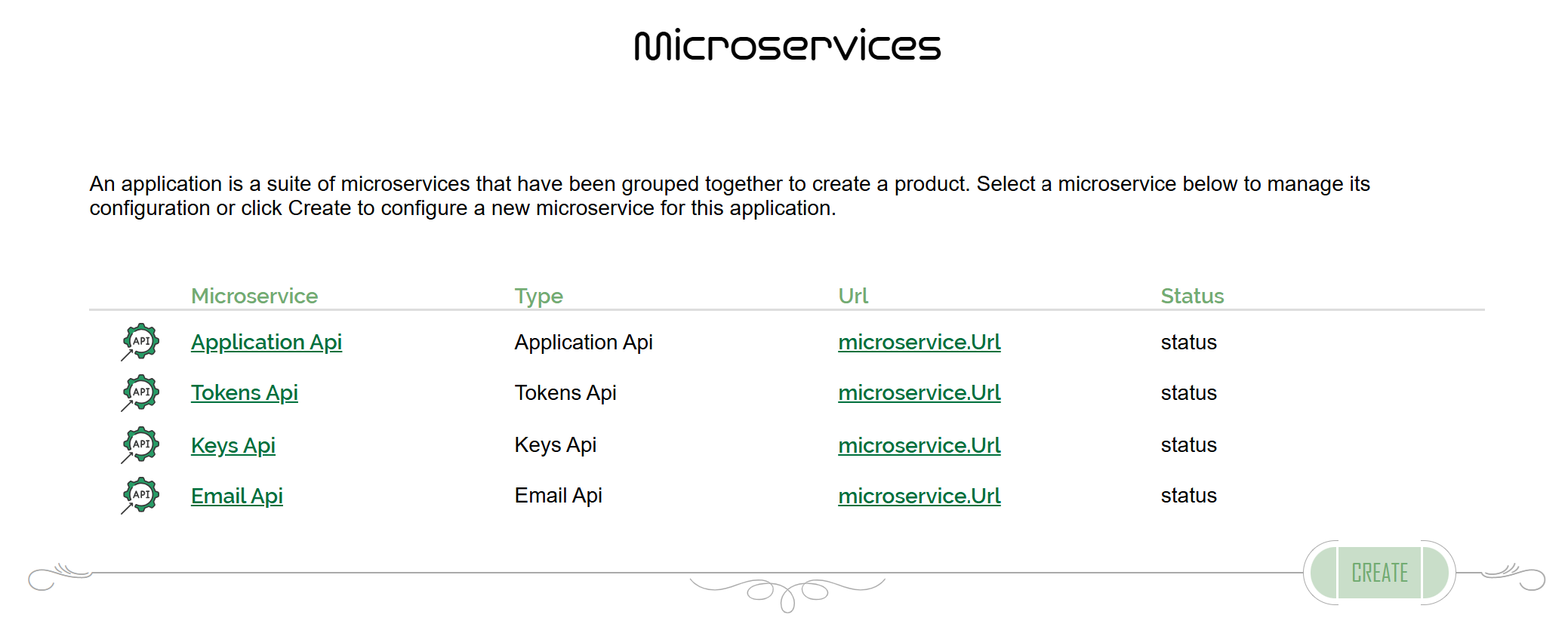
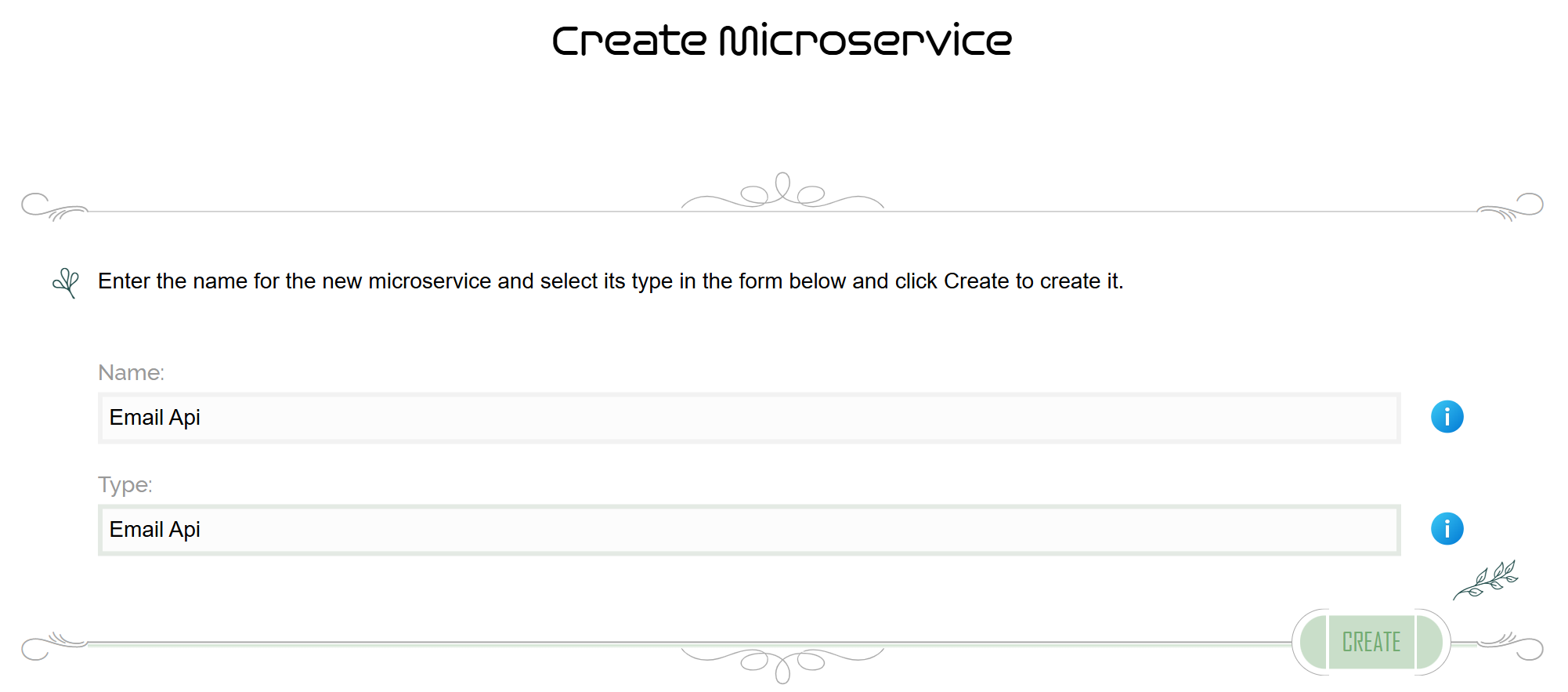
From the list of Microservices within your Application, click Create to access the Create Microservice screen. Enter a name for the microservice and give it the type Email Api.
Click Create on this screen to create the Email Api microservice and add it to the Application. It will take you back to the list of Microservices within the Application.
Configure Email Api
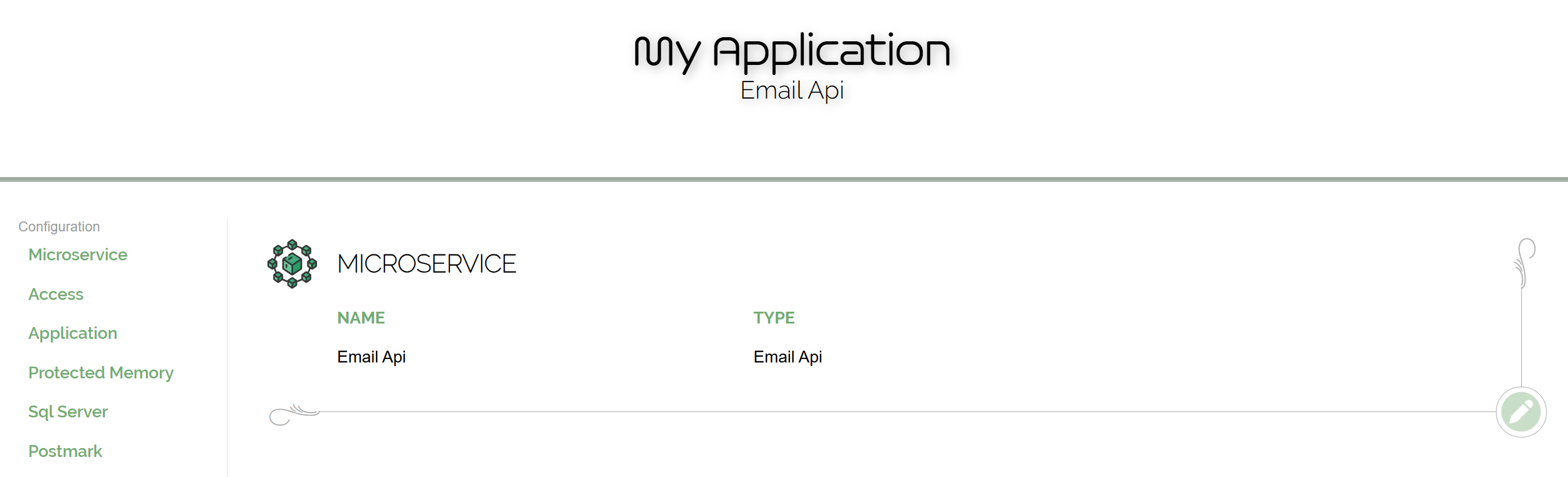
Click on the Email Api microservice you just created in the list to edit its settings.
Setting up the microservice involves going through each section and configuring them as required. On these screens, you will see the raw values, but when providing them to the Email Api, they are given in encrypted form. The Control Panel prepares that encryption for you.
Menu Item
Description
Microservice
Configure general settings about the microservice.
Access
Configure how this microservice can be accessed.
Application
Configure how to access the Application Api.
Protected Memory
Configure the protected memory system.
Sql Server
Specify Sql Server connection strings.
Postmark
Configure the Postmark email provider.
References
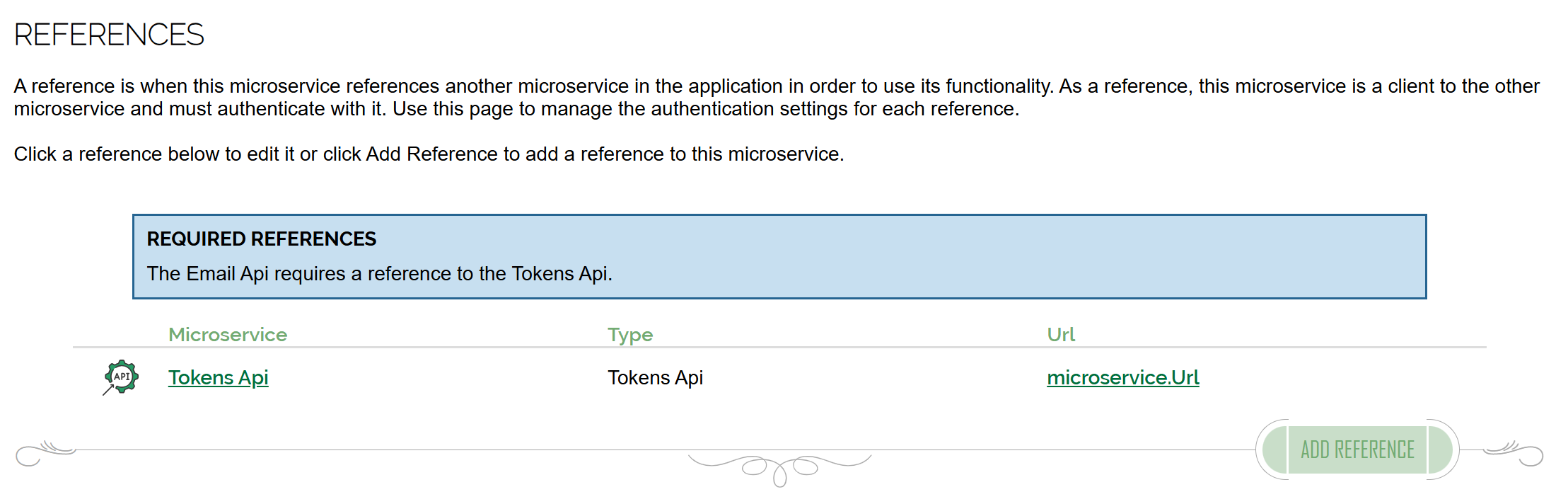
References indicate to the Control Panel that a microservice has dependencies on other microservices. When these are specified, the Control Panel will make their encrypted access settings available in the generated configuration files.
The Email Api depends on the Tokens Api for generating time-bound verification tokens. Add the Tokens Api as a Reference so the Control Panel can include its access settings in the Email Api's configuration.
Deployment
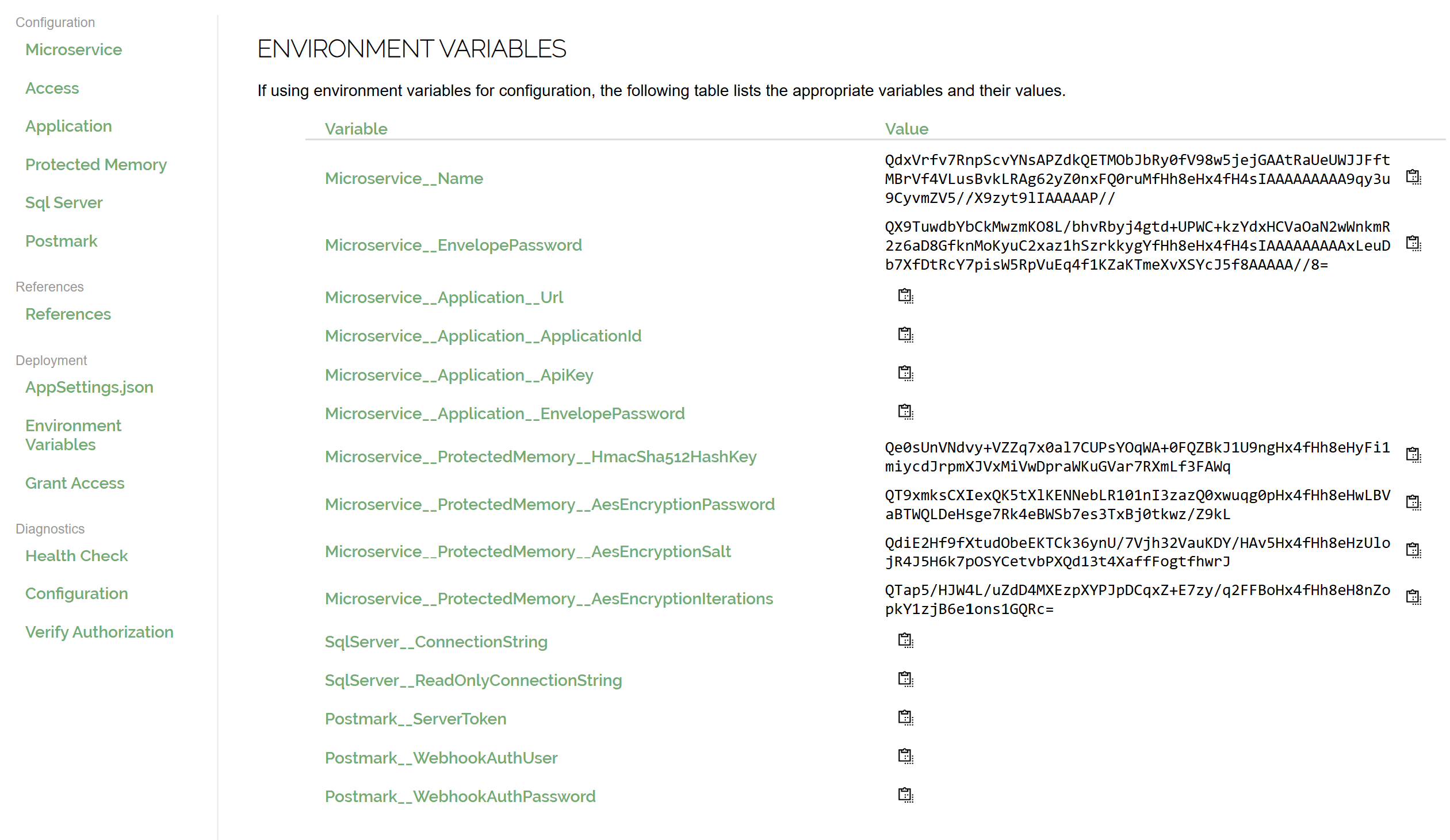
To proceed further, you must deploy your Email Api. In your arch-email-api.yml file will be a series of environment variables that require values. Obtain those values from the Environment Variables screen in the Control Panel. A helpful Copy to Clipboard button is provided next to each value, just click that and paste into its appropriate spot in the service yml file.
Deploy the Email Api into its Docker container when the environment variables are set up in arch-email-api.yml. Also change the volume source path to something appropriate for your deployment. As you require, you may also perform any other configurations to the yml file.
With the container running, perform a Health Check (see below). If the health check shows Healthy, the Email Api is ready to accept requests.
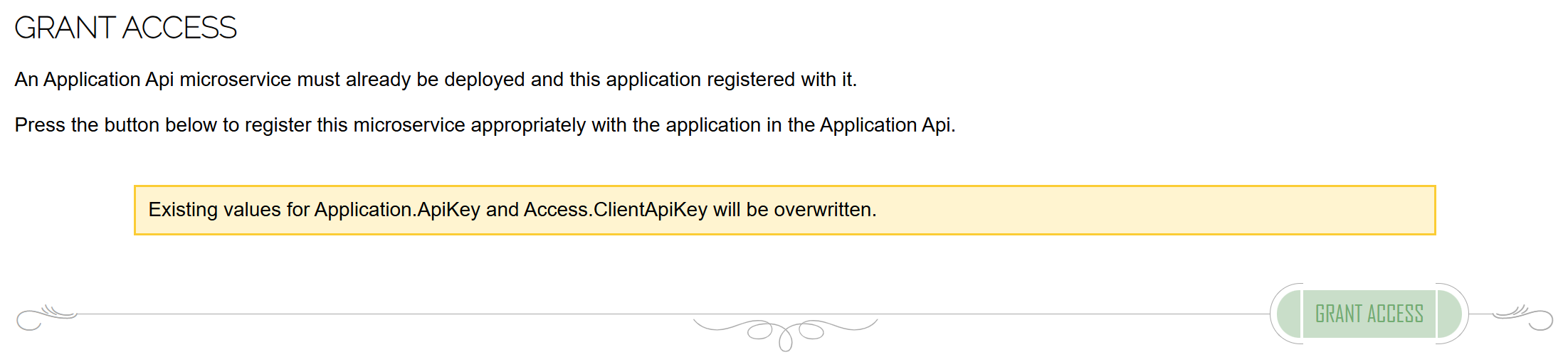
Grant Access to the Email Api in your application. Arch protects the entire distributed application and without this authorized access, all calls to the Email Api will be disallowed.
Menu Item
Description
AppSettings.json
Get the encrypted settings to use for appsettings.json.
Environment Variables
Get the encrypted settings as environment variables.
Grant Access
Authorize this microservice with the Application Api.
Diagnostics
The Control Panel provides diagnostic capabilities for microservices in Arch to help troubleshoot any issues.
A Health Check can be performed to ensure the microservice is properly configured and starts up correctly. Health checks should be performed whenever setting up the microservice and for health monitoring.
A more thorough Configuration diagnostic can be performed to evaluate whether the configuration of the microservice matches what the Control Panel has specified. If there are discrepencies, there will most likely be Unauthorized Access and/or encryption errors. As this feature decrypts and relays configuration data to the Control Panel from the microservice, it must be enabled on the microservice in order to work. In the service yml file, add the following Microservice__EnableDiagnostics environment variable and set its value to true, then restart the container.
Microservice__EnableDiagnostics=true
Be sure to remove this setting when diagnostics is complete -- you never want this enabled in Production.
The Verify Authorization screen allows the authorization functions for the Email Api to the Application Api and for clients of the Email Api to the Email Api to be tested in isolation. These tests should both pass for the Email Api to be considered successfully set up.
Menu Item
Description
Health Check
Perform a health check on the microservice.
Configuration
Diagnose deployed configuration settings.
Verify Authorization
Diagnose authorization protocols.
Tech Sovereignty
Arch
Company
About Contact